

HomeGrown Solution: HDMI Switcher Setup for Health Care Simulation AV Supports
Title
HDMI Switcher Setup for Health Care Simulation AV Supports
Submitted by
Chong Jaan Hwan
HomeGrown Solution Number
Category
Identification of the Problem
Simulation-based training in health care often relies on proprietary AV systems that are tightly integrated with specific manikin platforms, training venues, or simulation modes. These systems can be expensive, inflexible, and difficult to scale or adapt to evolving training needs. Additionally, many facilities face limitations in AV integration, such as restricted compatibility with third-party devices or software, and dependence on specialized vendors for setup and maintenance.
This solution addresses the need for a more adaptable, cost-effective, and vendor-neutral AV solution. By leveraging commercially available AV products and technologies, this approach enables simulation centers to build a flexible system that supports diverse training scenarios, integrates with various external AV sources, and operates independently of proprietary platforms.
Unique Idea
Drawing inspiration from how organizations adopted DIY AV setups during the COVID-19 pandemic, this solution leverages readily available AV technologies to offer a more adaptable and cost-effective alternative for supporting simulation-based training.
Objectives
- Develop and deploy an AV system that operates independently of specific manikin systems, training venues, and simulation modes.
- Use off-the-shelf AV solutions to ensure the simulation facility is not tied to any particular AV provider.
- Enable the reception and streaming of third-party AV sources (e.g., electronic medical records, ventilators, anesthesia units, ultrasound scanners, etc.).
Supplies/Ingredients
- HDMI switcher with software control capability, such as Blackmagic’s ATEM Mini Extreme HDMI switcher
- PTZ (pan-tilt-zoom) webcam
- Fiber optic USB-C cables (one per webcam)
- Compact computer system, such as Mac Mini or Mac Studio
- USB-C to HDMI adapters
- Earphones
- Wireless HDMI transmitter/receiver system
- HDMI extender for remote viewing
- Microphone with voice modulation capability
- Wireless microphone and speaker system
Steps to Creating the Solution
Step 1: Refer to the following video for a visual overview of the AV setup using HDMI switchers: https://youtu.be/rcV26UN3y68?si=ZOv2XvH_-sA7kRkp.
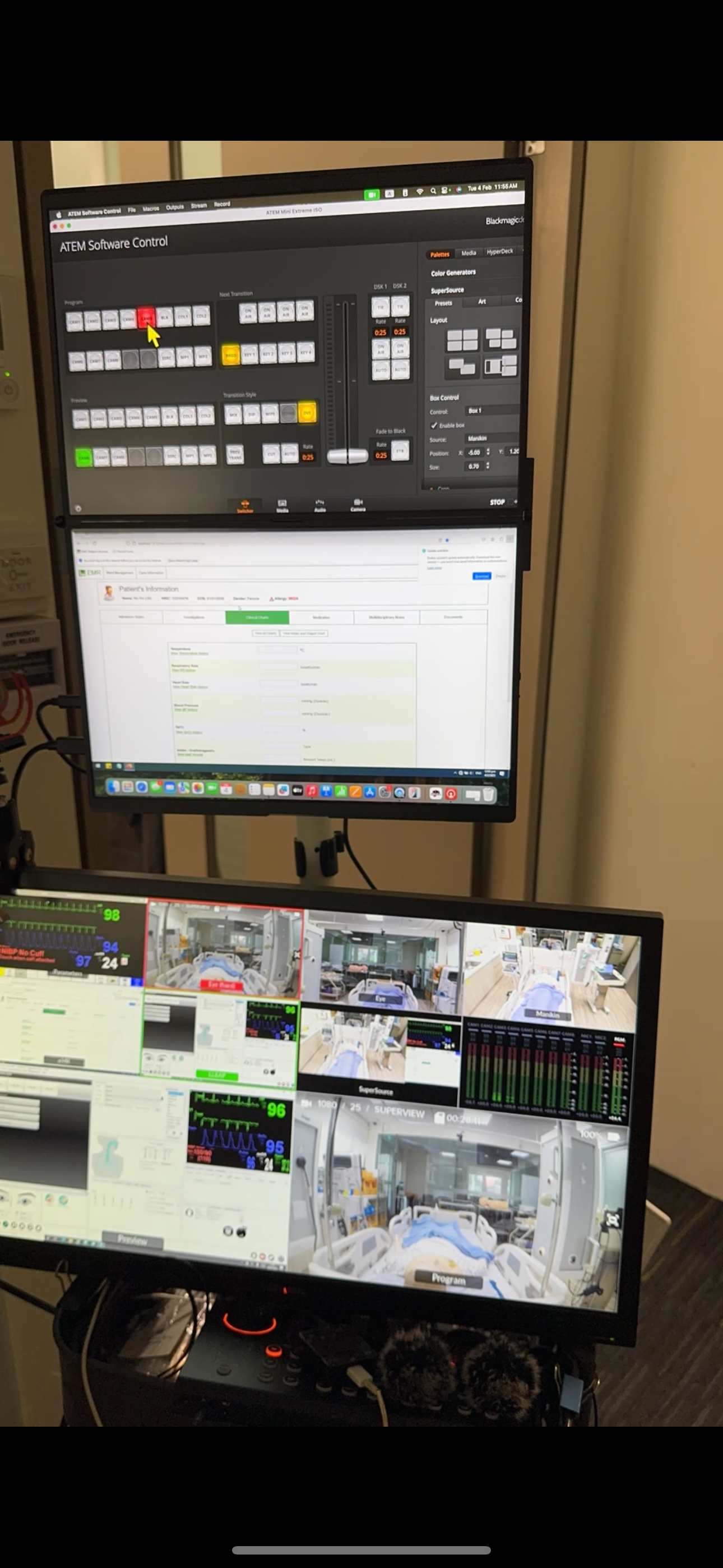
Step 2: Set up a compact desktop computer with AV control software and webcam control applications. Connect the computer to the HDMI switcher using appropriate cables, as shown in the upper and lower monitors in the video.
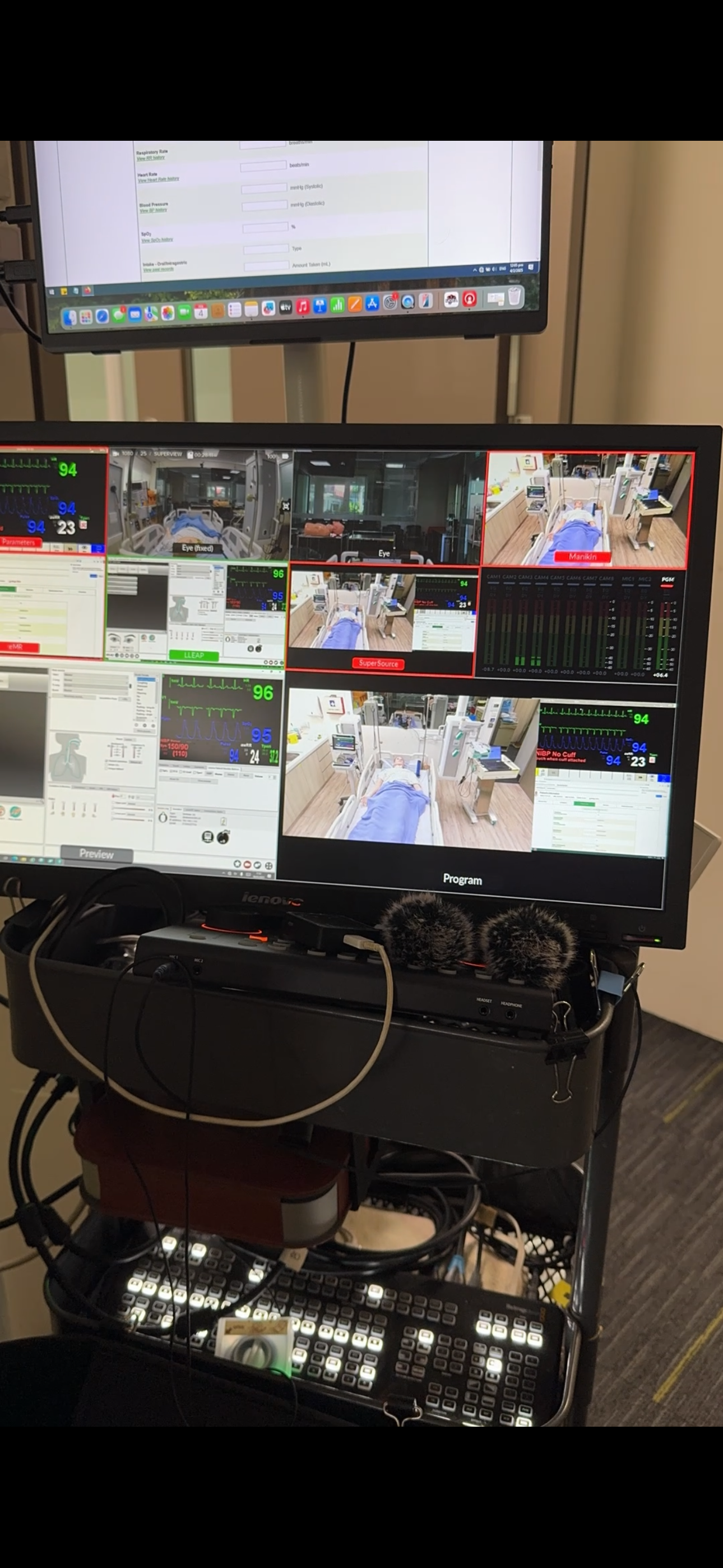
Step 3: Connect the computer and webcams using fiber optic USB-C cables. The computer powers, controls, and receives AV signals from the webcams. These signals are displayed live using media software and transmitted to the HDMI switcher via USB-C to HDMI adapters. The switcher supports up to eight HDMI inputs and can display up to 4 videos simultaneously using picture-in-picture. A Thunderbolt docking station may be needed to expand input and output options.
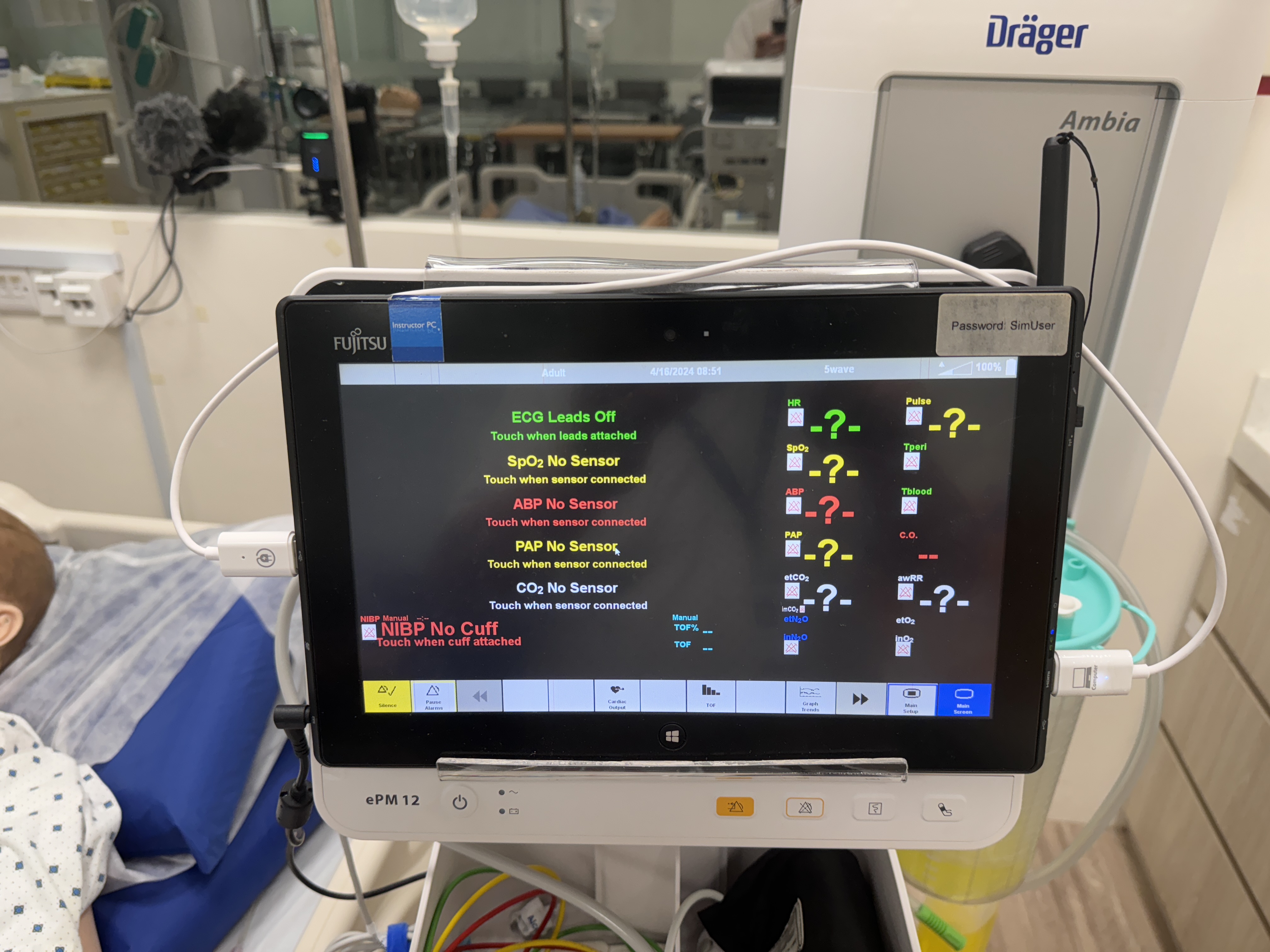
Step 4: Use wireless HDMI transmitters to send AV signals from external devices such as patient monitors, electronic medical records, manikin control applications, or ventilators to the HDMI switcher.
Step 5: The HDMI switcher provides three output views: the program view is sent to a viewing gallery using an HDMI extender, the multiview is displayed at the control station for source selection and monitoring, and a dedicated enlarged view of electronic medical records is shown on a separate monitor. The AV feed is live with minimal lag, typically less than one second.
Step 6: Connect earphones to the HDMI switcher to monitor audio input and listen to conversations with simulation learners.
Step 7: Use the AV control software to manage audio levels and reduce feedback during simulation sessions.
Step 8: Depending on the scenario, use a microphone with voice modulation to capture, alter, and project the operator’s voice in real time through a hidden speaker to interact with simulation learners.
Image
Video
HomeGrown Disclaimer
The information contained within this website is for information purposes only. While the website is monitored in an attempt to keep the information up to date and accurate, be aware that there are no representations or warranties of any kind, express or implied, about the completeness, accuracy, reliability, and/or suitability being made. The sponsors of this website are not liable for any loss or damage that may result from using information contained within this website. Any reliance you place on the information contained within this website is strictly at your own risk.
Please note that sections of this website include postings of individuals not associated with the website sponsors. These postings are not endorsed or warrantied by the website, and use of such information is at your own risk.
Always check the user guide/manuals provided by the manufacturer of your manikin or task trainer. Using products that are not sanctioned may invalidate the product warranty. (For example: Some products could stain the skin on a manikin. Liquids used around electrical parts may cause malfunctions.)