
Purchasing a Virtual Exam
Log in to your student account.
Head to the Store:
Check to be sure you selected the correct exam, and be sure it says Virtual.
Click Learn More.
Click Add to Cart.*
Click View Cart.
Click Proceed to Checkout.
Click Confirm Purchase.**
Enter your credit card information or school-provided voucher code.
Click Proceed to Checkout.
You will receive a "Payment successful" message indicating that you've made your purchase. You will also receive an email confirmation and a printable receipt.
Click "Go to Purchases" to view your exam.
*If you need to reschedule your exam session, you must do so at least 24 hours in advance. Failure to do so will result in a $30 rescheduling fee. You will find the reschedule option on your Proctor360 dashboard.
**The NLN has a NO REFUND policy. Please make sure you have chosen the correct exam(s) or prep material(s) before completing your checkout. Once a purchase is made, it is final. If you are unsure which item(s) you need, please contact your institution and/or customer support.
Scheduling a Virtual Exam
After purchasing a virtual exam, it will appear on your Dashboard.
- Find the exam and click Register for Proctoring.
- You’ll be directed to Proctor360 to schedule your appointment.
- On the scheduling page:
- Select the date you want to test.
- Choose an available time (times are displayed in your local time zone).
- Read and agree to the exam rules.
- Click Schedule Your Exam Time Now*.
- Review the appointment details and click Confirm to finalize your session.
- A confirmation screen will appear—here you can:
- Print an appointment card.
- Check operating system requirements.
- At the bottom of the page, click Dashboard to go to your Proctor360 Dashboard (different from your NLN Dashboard).
- On your Proctor360 Dashboard, you can:
- Run a system check (recommended as soon as possible on your testing device).
- Review exam rules.
- Reschedule** or cancel your appointment if needed.
*If you need to test within 48 hours, Proctor360 will charge a $30 on-demand scheduling fee.
**If you need to reschedule your exam session, you must do so at least 24 hours in advance. Failure to do so will result in a $30 rescheduling fee. To reschedule, please create a support ticket with Proctor360.
IF YOU NEED TECHNICAL SUPPORT AT ANY POINT WHILE COMPLETING THE STEPS ABOVE, PLEASE CONTACT PROCTOR360 SUPPORT.
Computers and Tech
- Computer Battery: Please keep your computer plugged in during the exam. If your device powers off due to low battery, you will be required to purchase a new exam and start over - pending approval from your school.
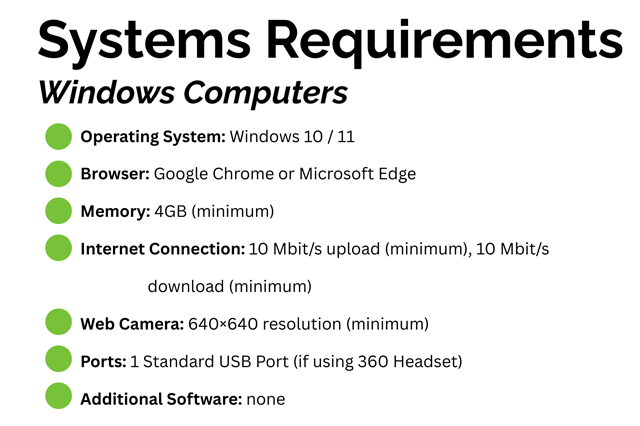
- Make sure you have take the time to identify the technology and system requirements to be sure your device meets them.
- Proctor360 will also require you to complete a system check prior to your scheduled appointment. This process takes time, and if you wait until the day of your appointment, you risk missing your exam check-in time, which results in a no-show cancellation and a $30 appointment reschedule fee.
- You will need a mobile device with a camera, along with a charger, for the duration of your exam.
.png?sfvrsn=2589ca85_0&MaxWidth=640&MaxHeight=480&ScaleUp=false&Quality=High&Method=ResizeFitToAreaArguments&Signature=A6CB9569D1ED9702F1ACF258CF7FB2D97E97F1FC "Examinee_Virtual_Computer and Tech (2)")
.png?sfvrsn=2418eb97_0&MaxWidth=640&MaxHeight=480&ScaleUp=false&Quality=High&Method=ResizeFitToAreaArguments&Signature=F305F6DE163C9CABDC63125AC394B38DADA647D8 "Examinee_Virtual_Computer and Tech NO")
Operating System Requirements

Testing Room Requirements


